How to Manage Your YouTube Channel with Claude Code
What if Claude Code could actually help run your YouTube channel instead of just giving you ideas about it?
That is the promise of connecting Claude Code to a YouTube Studio MCP setup. Once it is connected, Claude Code can work with the same kinds of actions available through the YouTube Studio API, including reviewing uploads, suggesting better titles, analyzing channel performance, responding to comments, and even helping with uploads and metadata updates.
This setup only takes a few minutes, and the workflow is refreshingly simple.
What this setup lets Claude Code do
Before getting into the steps, it helps to be clear on what you are unlocking.
With YouTube Studio MCP connected, Claude Code can access your channel data and help with tasks like:
- Uploading videos
- Updating titles, descriptions, and thumbnails
- Reviewing channel analytics and performance
- Reading, reviewing, and responding to comments
- Looking at recent uploads and suggesting improvements
In other words, this is not just a reporting layer. Claude Code can both inspect your channel and take action inside your YouTube workflow.
Step 1: Go to YouTube Studio MCP
Start by heading to YouTubeStudioMCP.com.
Once you are there, click the Connect button in the top-right corner, then choose Connect my channel.
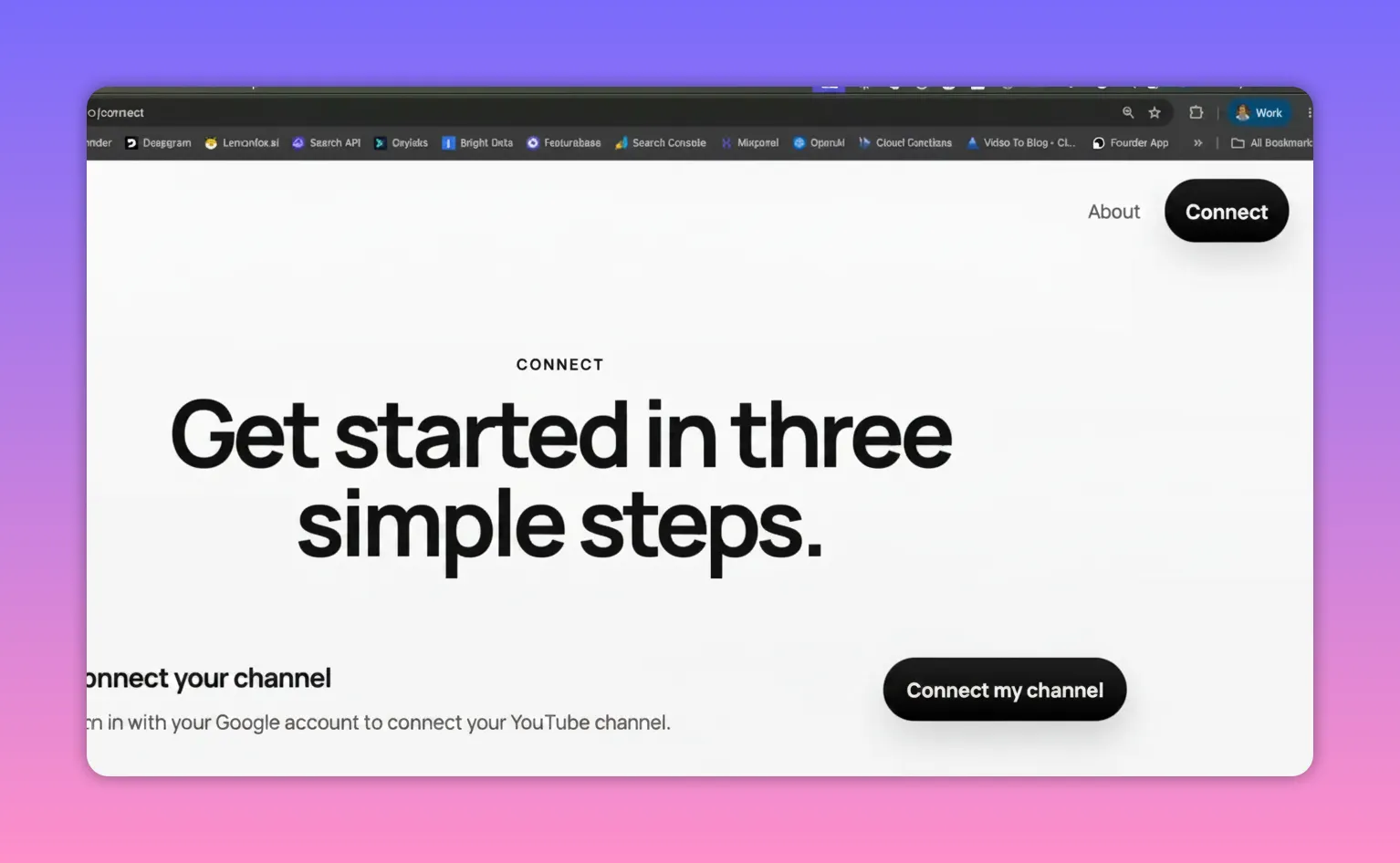
The site walks you through a very short three-step onboarding flow, so you are not piecing this together manually.
Step 2: Connect your YouTube channel with Google OAuth
After clicking Connect my channel, you will be prompted to authenticate with Google. This is the part where you authorize access to the YouTube channel you want Claude Code to work with.
If you manage multiple Google accounts or brand accounts, make sure you choose the right one.

Once authentication is complete, your channel is connected and you can move on to the MCP server setup.
Step 3: Copy the install command
In the second step of the setup flow, the site gives you a command to run. Copy that exact command.
This command installs or configures the YouTube Studio MCP server so Claude Code can use it.
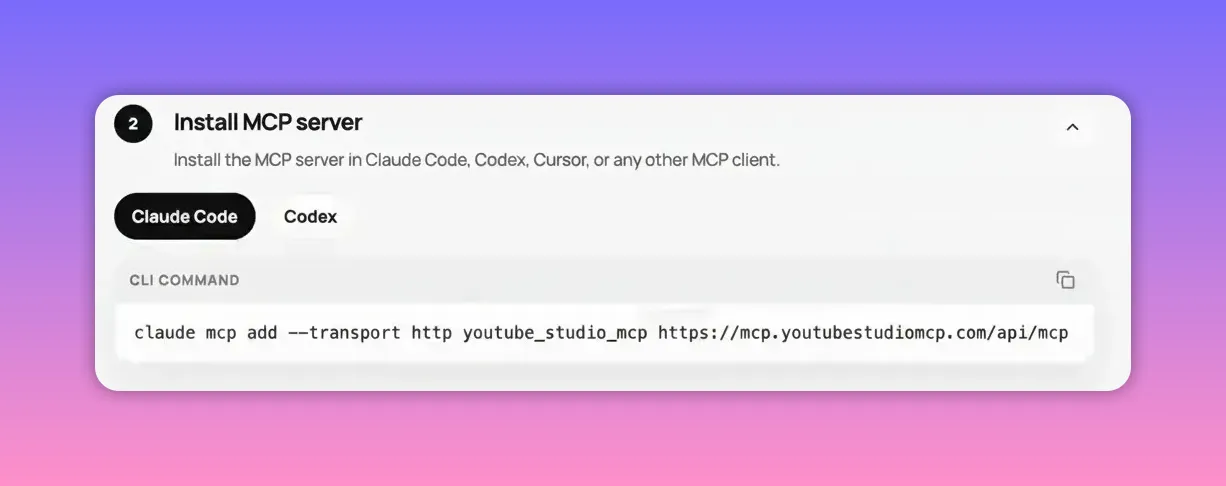
Then open your terminal, paste the command, and press Enter.
That is really the whole install portion. No complicated manual configuration is shown here. You just use the generated command and move on.
Step 4: Launch Claude Code
Once the MCP server step is done, open Claude Code from your terminal.
The command used here is simply:
claudeAfter Claude Code opens, run the MCP command:
/mcp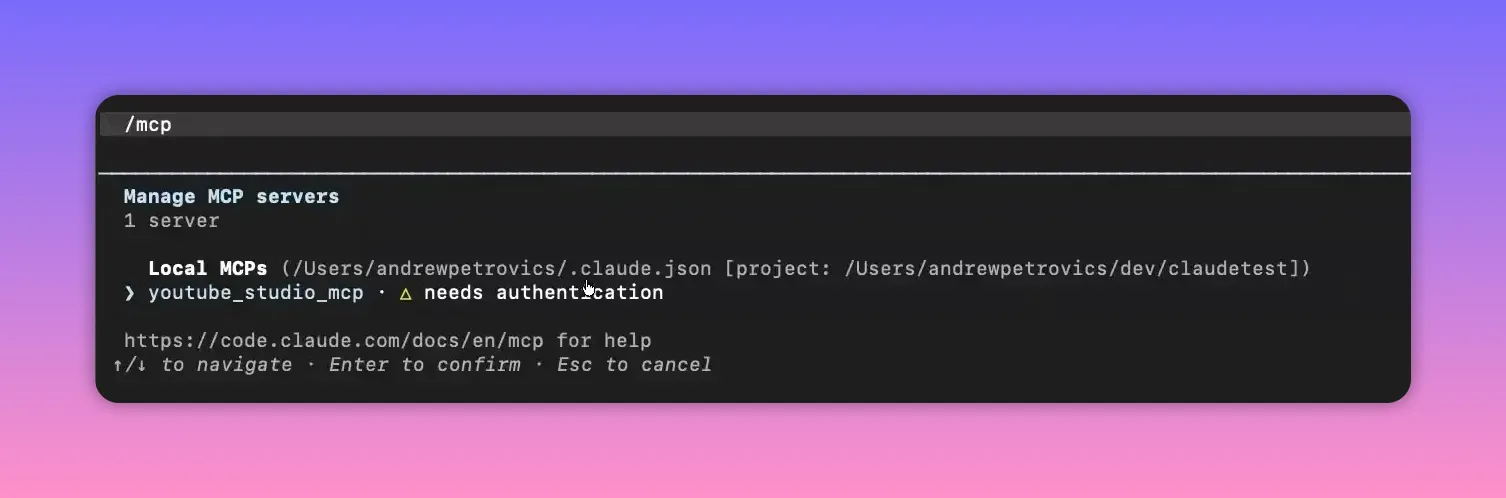
You should see your YouTube Studio MCP connection appear in the list.
Step 5: Authenticate the MCP connection inside Claude Code
Select the YouTube Studio MCP entry. If it still needs authorization, choose the authenticate option.
The flow shown here uses the command:
authenticateThis opens a browser window and completes the final authentication step.
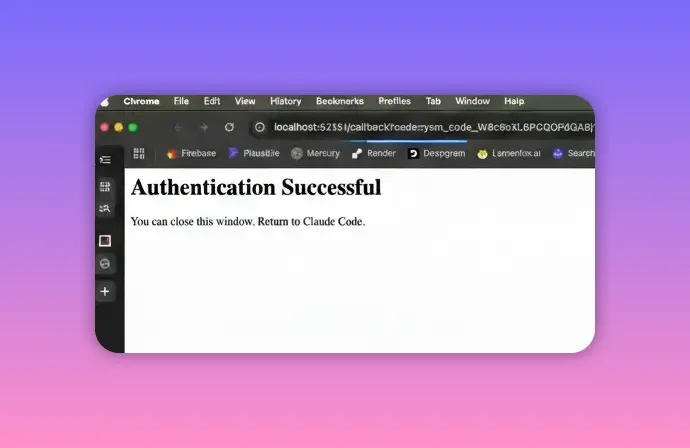
When you see the success message, you are done. Claude Code is now connected to your YouTube channel.
Step 6: Start giving Claude Code channel tasks
At this point, you can begin using natural-language prompts to manage your YouTube workflow.
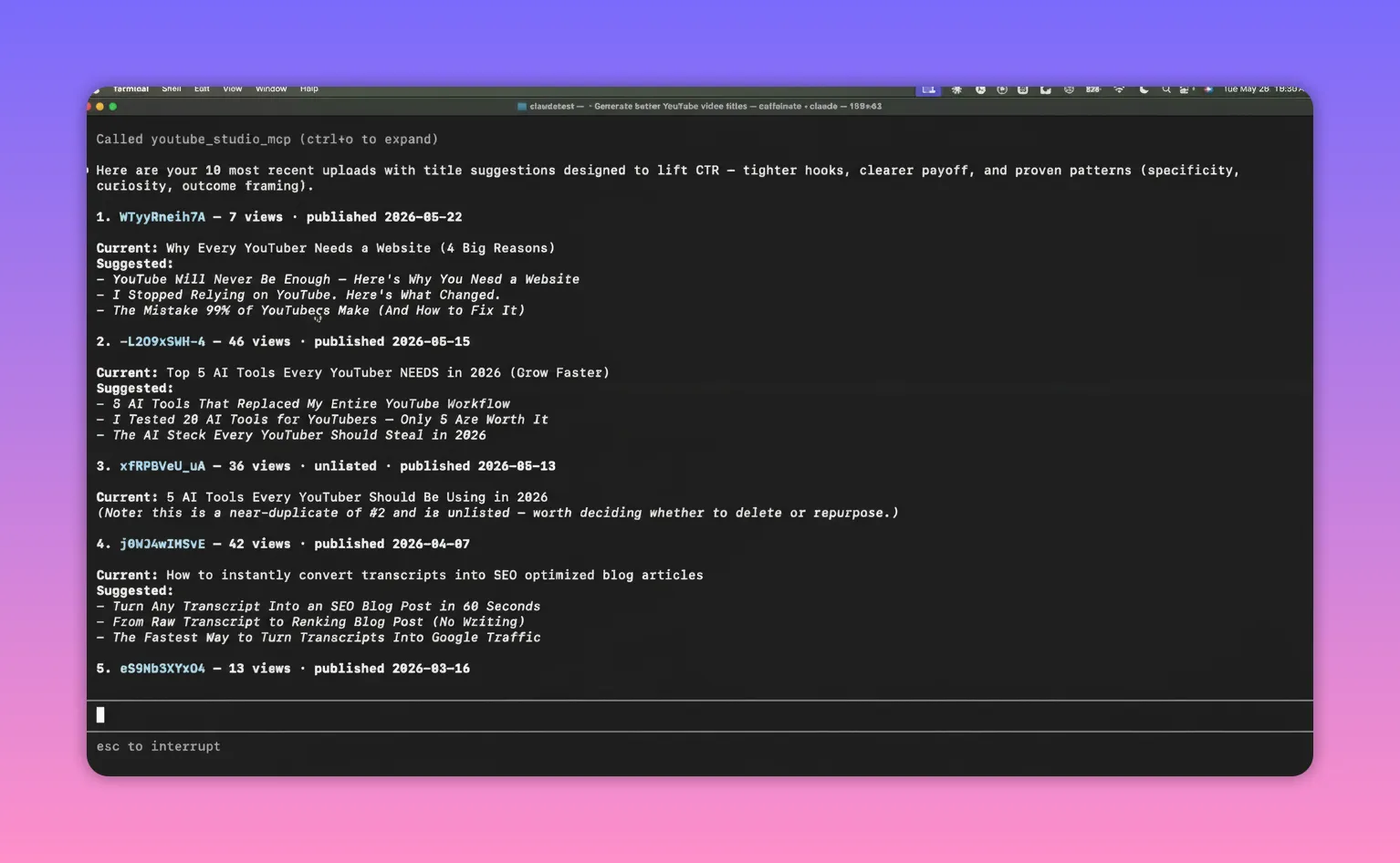
One example prompt used immediately after setup is:
show me my latest YouTube uploads and offer better title suggestions
This is a great first test because it proves two things at once:
- Claude Code can access your real channel data
- Claude Code can do useful editorial work on top of that data
From there, you can expand into more operational tasks depending on how hands-on you want Claude Code to be.
What Claude Code can help with after setup
Once the connection is active, Claude Code has access to the capabilities exposed through the YouTube Studio API. That makes this much more than a simple analytics integration.
Examples of what you can ask for include:
- Review recent uploads and suggest stronger titles
- Optimize descriptions for clarity and discoverability
- Update thumbnails as part of your publishing workflow
- Analyze channel performance and identify what is working
- Respond to comments or help draft responses
- Upload videos directly through the connected workflow
The key point is that Claude Code is not limited to passive analysis. It can actually make changes and carry out channel management actions when the MCP connection is in place.
Why this is powerful
Most creators already use AI for brainstorming titles, outlines, or video ideas. This takes things a step further by connecting AI directly to the actual YouTube workflow.
That means less copying and pasting between tools, less manual checking inside YouTube Studio, and a much faster feedback loop when you want to improve metadata or review channel performance.
If your goal is to give Claude Code direct YouTube workflow capabilities, this is a very fast way to do it.
Quick setup recap
- Go to YouTubeStudioMCP.com.
- Click Connect, then Connect my channel.
- Authenticate with Google and select your YouTube channel.
- Copy the generated MCP install command.
- Run that command in your terminal.
- Launch Claude Code with
claude. - Run
/mcp. - Select YouTube Studio MCP and authenticate.
- Start prompting Claude Code to manage and optimize your channel.
A simple first prompt to try
If you want an easy place to start, use this exact type of request:
Show me my latest YouTube uploads and offer better title suggestions.It is quick, practical, and immediately useful. From there, you can move into descriptions, thumbnails, comments, uploads, and analytics.
That is the whole setup. A few clicks, one terminal command, one authentication step inside Claude Code, and you have a much more capable YouTube management workflow.


