How to Manage Your YouTube Channel with Codex

If you want Codex to do more than just generate ideas, you can connect it directly to your YouTube workflow and let it help manage the channel itself.
That includes tasks like uploading videos, updating titles, descriptions, and thumbnails, reviewing comments, responding to them, and analyzing channel performance. The setup is surprisingly quick. Once connected, Codex can both read channel data and take action on your behalf through YouTube Studio MCP.
What this setup lets Codex do
After connecting your channel to YouTube Studio MCP, Codex is no longer limited to general suggestions. It can work with your actual channel.
- Show your latest uploads
- Suggest stronger video titles
- Help improve descriptions
- Update thumbnails
- Review and respond to comments
- Analyze analytics and performance patterns
- Upload videos
The important idea here is simple: Codex can pull data from your channel and push changes back to it. That makes it useful as part of a real YouTube publishing workflow, not just a brainstorming tool.
Step 1: Connect your YouTube channel
Start by going to YouTubeStudioMCP.com.
In the top-right corner, click Connect, then choose Connect my channel. This starts the Google OAuth flow so your YouTube channel can be connected securely.
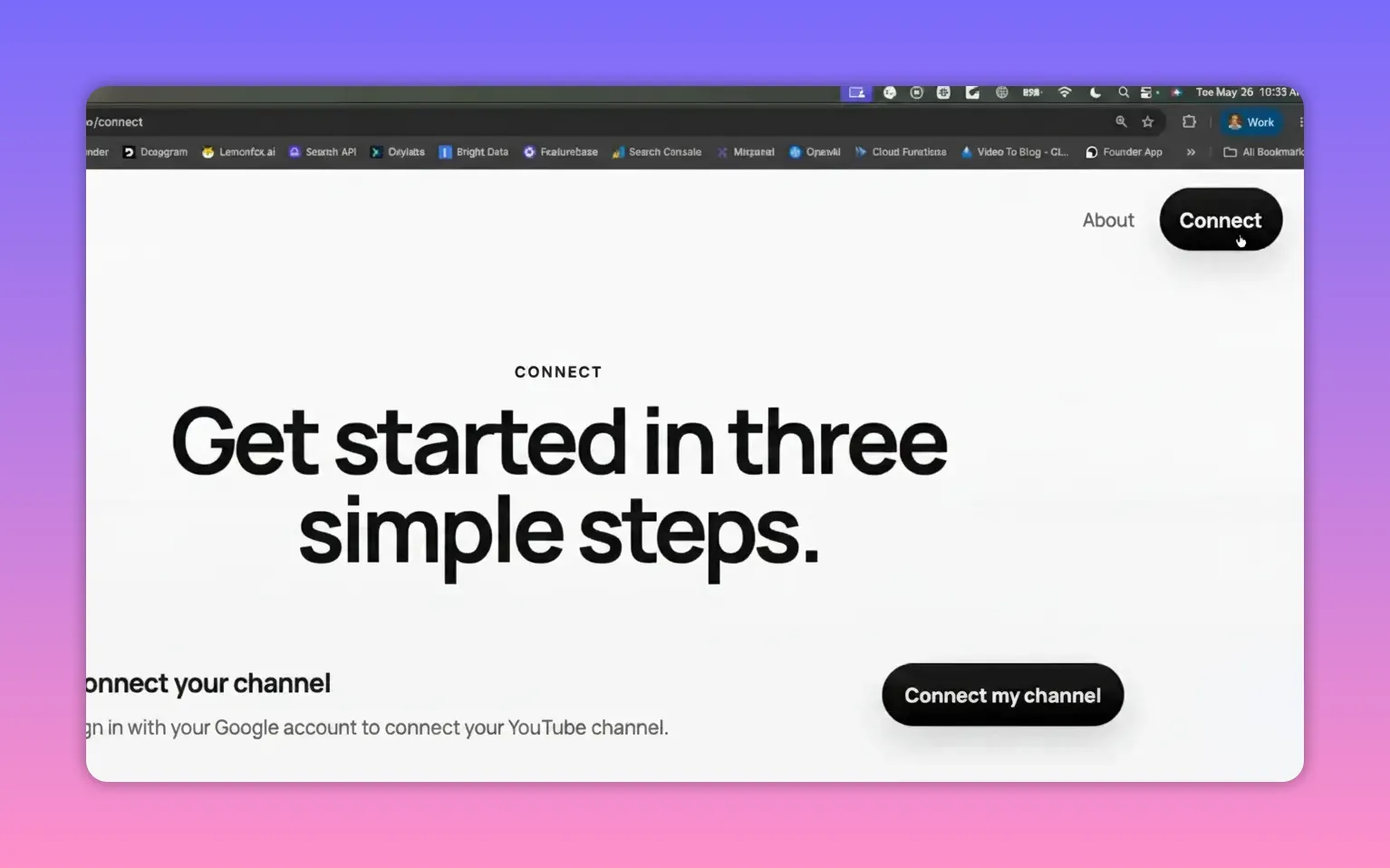
From there, follow the prompts to sign in with the Google account that owns or manages the YouTube channel you want Codex to work with.
Once the authorization is complete, your channel is linked and you can move on to the MCP server setup.
Step 2: Install the YouTube Studio MCP server
After connecting the channel, install the MCP server.
On the site, open the Codex tab. You will see installation commands you can run. There are a couple of command options available, and either one works for setup.
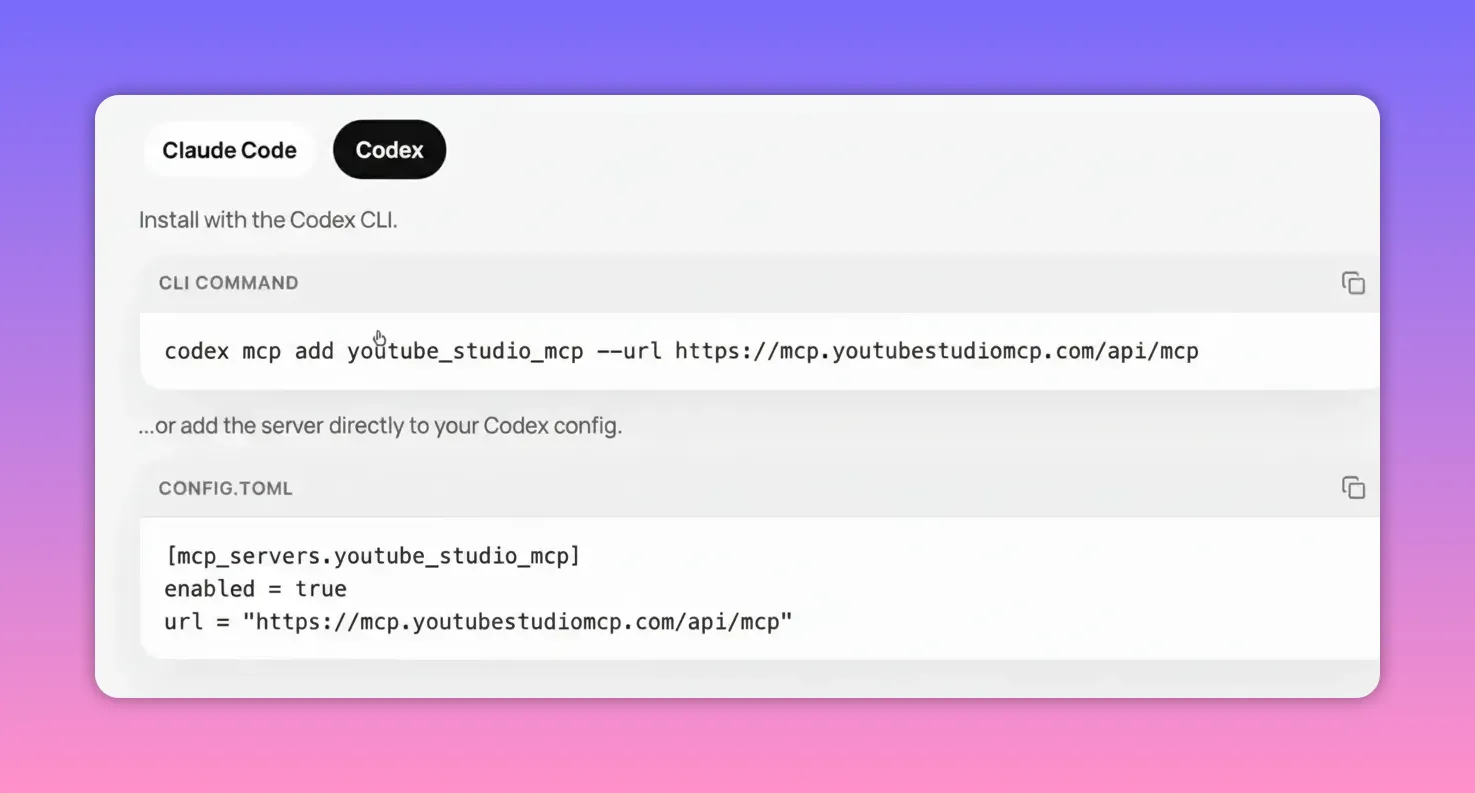
Copy one of the commands, open your terminal, paste it in, and run it.
That installs the YouTube Studio MCP server so Codex can communicate with your channel through the MCP layer.
Step 3: Authenticate the MCP server with your account
Installing the server is not the final step. You also need to authenticate it.
Back on the setup page, copy the authentication command and run it in your terminal. When you do, a browser window should open to complete the login flow.
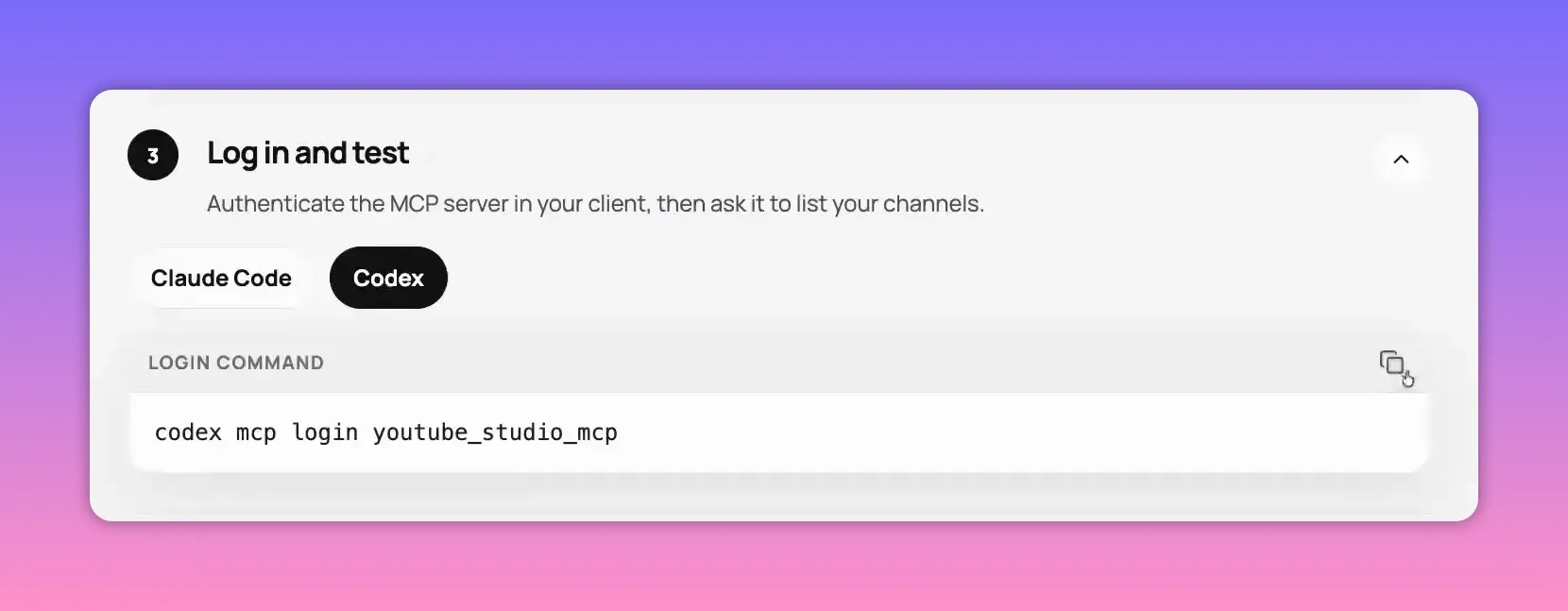
Once the browser confirms that authentication is complete, you are done with the connection process.
At this point:
- Your YouTube channel is connected
- The MCP server is installed
- The MCP server is authenticated with your account
Step 4: Restart Codex
If Codex was already open during setup, restart it so it can pick up the new MCP connection.
If it was not open yet, just launch it normally after finishing the authentication step.
This refresh is what allows Codex to detect the MCP server and start using the YouTube tools tied to your account.
Step 5: Start giving Codex channel tasks
Once everything is connected, you can prompt Codex directly inside the app.
A simple example is:
Show me my latest uploads and offer better title suggestions. Use the MCP.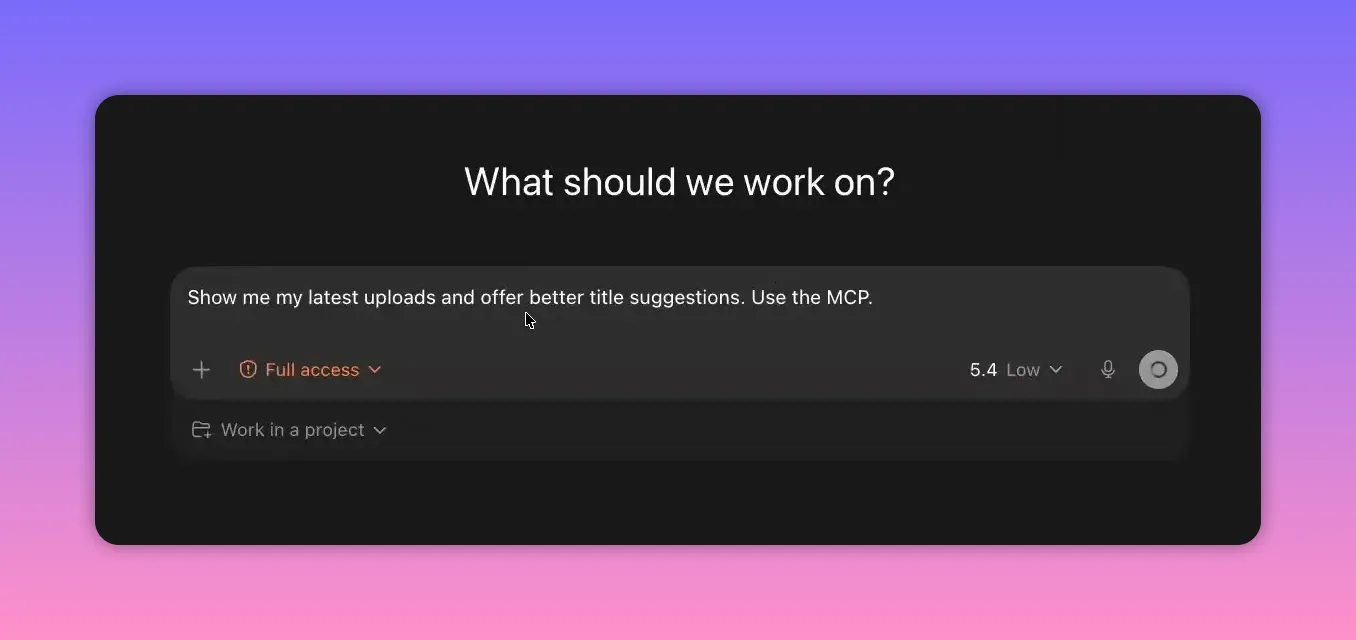
That kind of request tells Codex to use the connected YouTube Studio MCP tools instead of answering in the abstract.
Because the integration has access to your real channel, Codex can evaluate actual uploads and give suggestions based on what is already live.
What “full access” means here
Once the setup is complete, Codex can do two categories of work:
1. Pull data
This includes things like reading your uploads, checking analytics, and reviewing comments.
2. Push data
This includes taking actions such as responding to comments, uploading videos, and updating metadata like titles, descriptions, and thumbnails.
That push-and-pull capability is what makes the integration powerful. Instead of asking for generic YouTube advice, you can work directly against your channel.
Good first tasks to try
If you have just finished setup, these are practical ways to test that everything is working:
- Title optimization: Ask Codex to review your latest uploads and suggest stronger title options.
- Description cleanup: Have it improve descriptions for clarity, keywords, or consistency.
- Comment management: Ask it to review recent comments and draft or post replies.
- Performance analysis: Have it inspect analytics and surface opportunities for improvement.
- Thumbnail workflow support: Use it to help optimize thumbnails as part of your publishing process.
These are easy wins because they use both sides of the integration: reading channel data and helping you act on it.
Why this is useful in a real YouTube workflow
If you are already using Codex, this setup turns it into something much closer to an operational assistant for your YouTube channel.
Instead of manually bouncing between YouTube Studio, analytics, comments, titles, and publishing steps, you can delegate a lot of that work through one interface.
That is especially useful for repeat tasks like:
- Checking recent uploads
- Improving metadata
- Monitoring channel performance
- Managing audience engagement
The setup only takes a few minutes, but it opens up a much more hands-on way to use Codex as part of your content operation.
Quick setup recap
- Go to YouTubeStudioMCP.com.
- Click Connect, then Connect my channel.
- Complete the Google OAuth flow.
- Open the Codex tab and copy an install command.
- Run the install command in your terminal.
- Run the authentication command.
- Complete the browser authentication step.
- Restart Codex.
- Start prompting Codex to manage channel tasks through the MCP.
Once that is done, Codex can help manage your YouTube channel with direct access to the actions and data it needs.


