Turn YouTube Videos into Blog Posts (WordPress Tutorial)

Feb 9, 2026 • 3 min read

Repurposing your YouTube content into readable, SEO-friendly blog posts can save hours while keeping your WordPress site fresh. This step-by-step tutorial walks through the exact workflow using Video To Blog to convert any YouTube clip or uploaded file into a polished post and publish it to WordPress with a single click.
Step 1 — Prepare your source
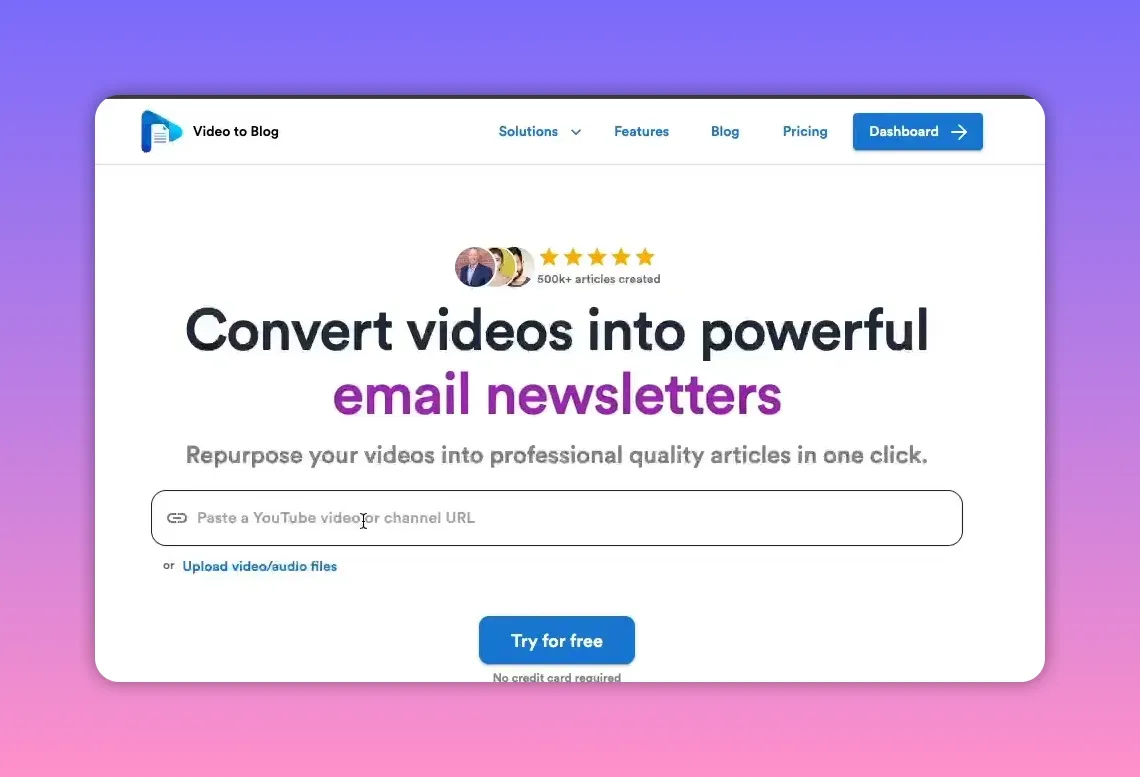
Start with the YouTube URL or a local video file. If the clip is already on YouTube, copy its URL. If not, upload the video file directly within Video To Blog — the rest of the process is identical.
Step 2 — Create the article in Video To Blog
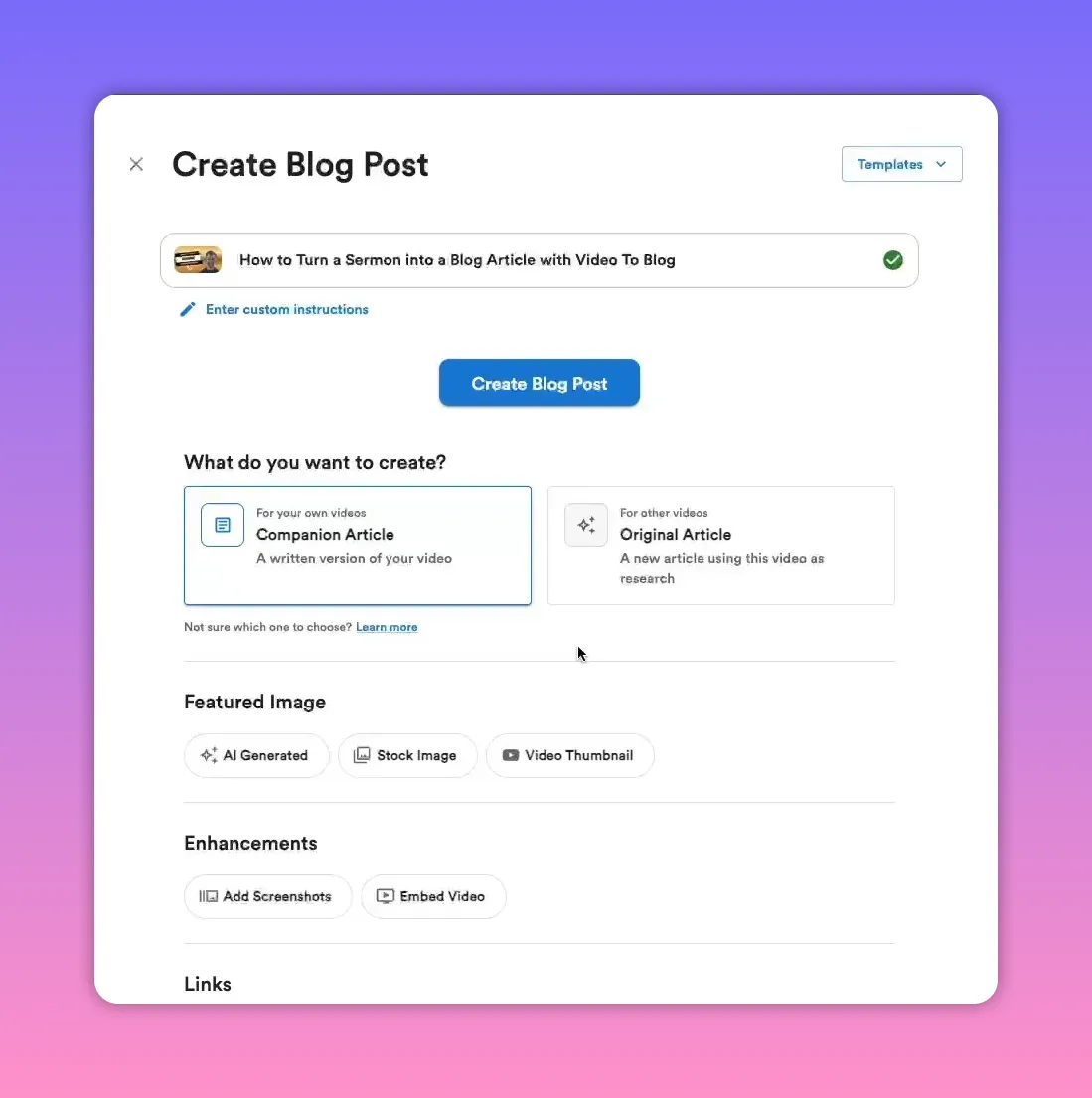
Paste the URL (or upload your file), then choose how the article should be generated. Key options to pick:
- Companion article — a blog post that lives alongside your original content (great for your own clips).
- Original article — use this when you want an article that synthesizes other creators’ material as research.
- Featured image — choose AI generated, stock, or use the original thumbnail.
- Screenshots — automatically include screenshots from the clip for visual context.
- Background — optional visual background for featured images or section headers.
- Embed the clip — include an embedded player so readers can view the clip inline.
- Links and writing preferences — add internal/external link rules and adjust tone, length, or structure as needed.
Choose the combination that fits your audience. Once selections are set, click create and the article generation will begin; typical generation time is just a couple minutes.
Step 3 — Review and tweak the draft
When generation completes, read through the draft and make minor edits. Typical cleanup steps:
- Regenerate or replace the featured image if it has artifacts or unwanted elements.
- Crop or edit screenshots to remove faces, UI clutter, or irrelevant details.
- Adjust tone and structure using the writing preference options if you want a different style.
- Check SEO using the built-in score and add internal links or references where appropriate.
Expect to spend about 5–10 minutes polishing a generated post before publishing.

Step 4 — Connect Video To Blog to WordPress
For one-click publishing, connect your WordPress site. Use the recommended plugin integration via Video To Blog's Integrations page. The plugin handles authentication and simplifies exports.
- Open Integrations and select WordPress.org.
- Choose the plugin option and follow the instructions to install the Video to Blog plugin in your WordPress admin.
- Activate the plugin, go to its settings, and click connect to authorize your site.
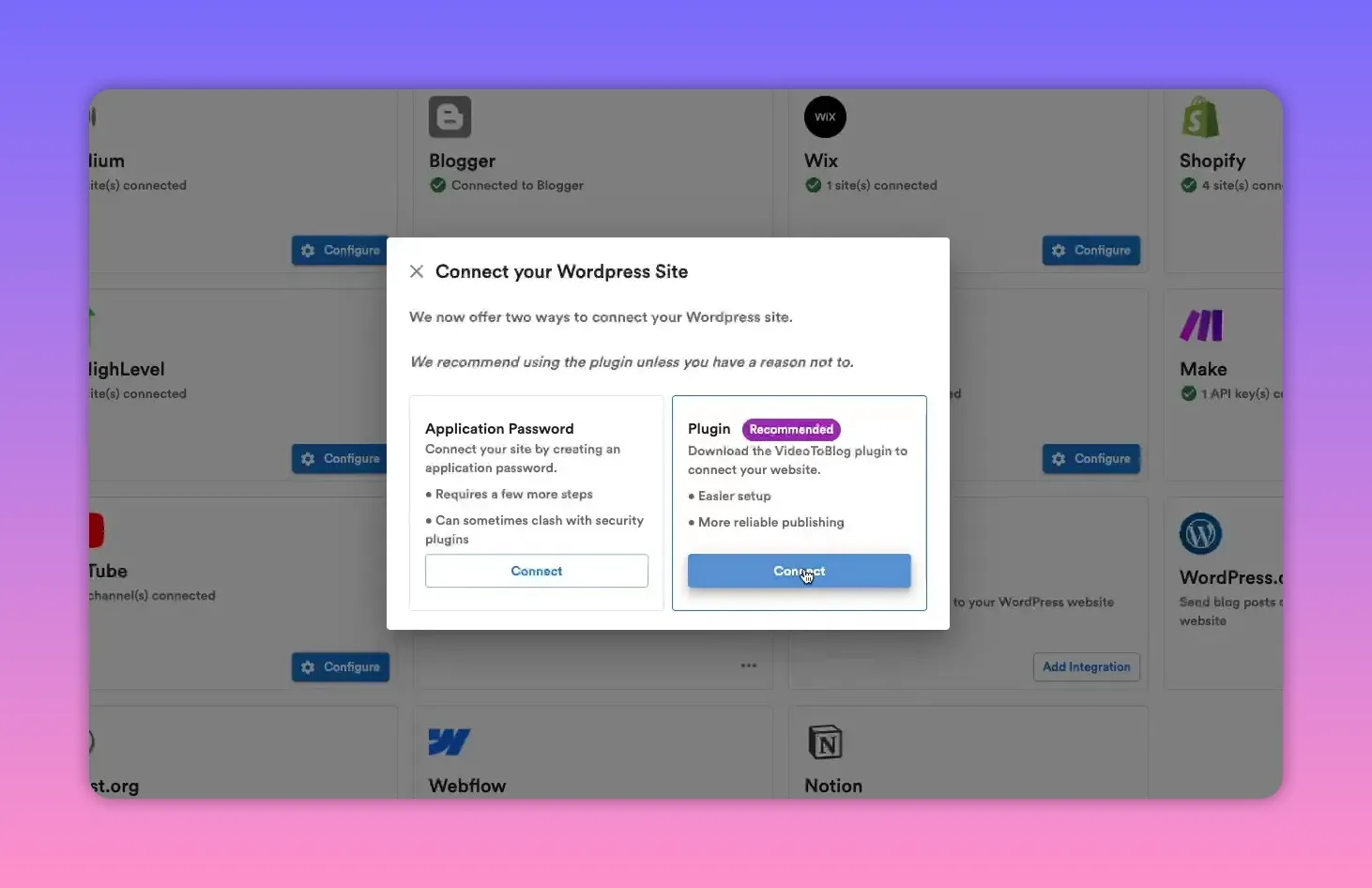
After approval, your site will appear as a connected integration ready to receive exports.
Step 5 — Export the article to WordPress
When the draft is ready, open Export and pick your connected WordPress site. Set the post category, confirm the slug and metadata, then export.
- The export uploads images and attaches SEO metadata, including meta title, description, and slug.
- Image files are named for SEO and alt tags are added automatically.
- The embedded player and screenshots are included so the post is complete on publish.
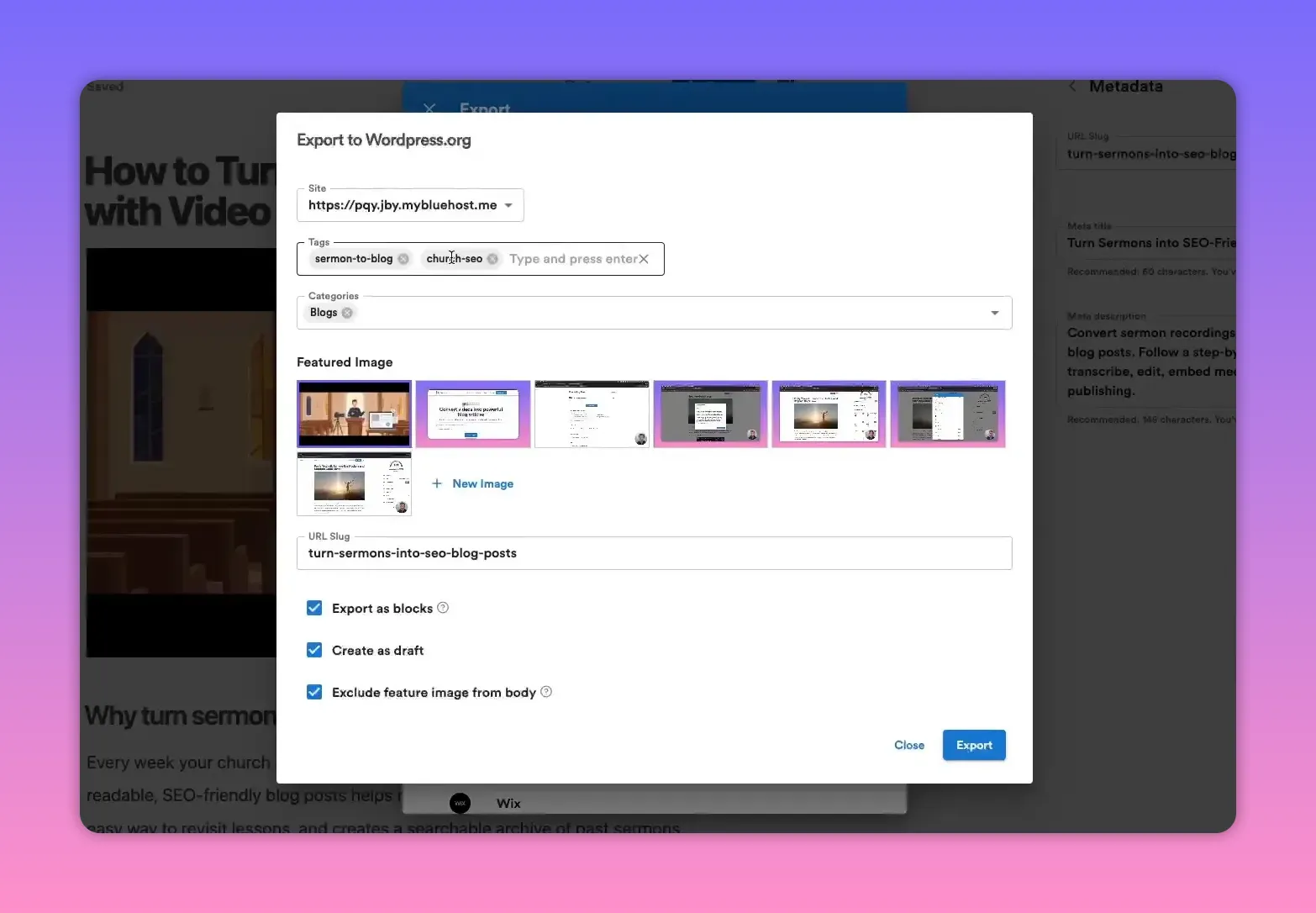
Once exported, the post appears on your WordPress site ready for any final checks or scheduling.
Optional — Automate new uploads from a channel
Set up an automation so new videos from any YouTube channel automatically create blog posts based on your settings and are published to WordPress without manual steps. This is ideal for creators or teams who publish frequently and want a fresh blog with minimal effort.
Practical tips and best practices
- Use companion articles for your own clips to drive cross-traffic between platforms.
- Add internal links to other posts for better SEO and reader retention.
- Edit screenshots to improve clarity and remove distractions before publishing.
- Regenerate featured images until you get a clean, professional look without artifacts.
- Check SEO metadata and add a few high-quality external links if helpful for context.
- Batch process several clips at once, then spend focused time refining and exporting.
Summary
Converting YouTube clips into blog posts with Video To Blog streamlines content production and keeps WordPress sites active with minimal effort. The workflow—paste or upload, choose generation settings, tidy the draft, connect WordPress via the plugin, and export—makes consistent publishing fast and repeatable. With automation enabled, this can become a fully hands-off channel for blog growth.
Rather watch instead?
Check out the video here...


