How to Get a YouTube Transcript (Fast + Free)

Jan 8, 2026 • 2 min read
Need the text from a YouTube video but don't want to install anything or use extra tools? You can pull the transcript directly from YouTube in about a minute. It’s built into the site and works for most videos that have captions or closed captions enabled.
Quick overview
In short: open a YouTube page, find the description area, and use the built-in transcript option. You can copy the text, choose another language when available, and toggle timestamps on or off. No downloads, extensions, or paid services required.
Step-by-step: get the YouTube transcript text
- Open YouTube and pick a video. Navigate to YouTube.com and select any video from the homepage or search results.
- Open the description panel. On the video page, click the description area beneath the video. Scroll down inside that panel until you see a Show transcript button.
-
- Click “Show transcript.” A text pane will appear with the caption text. If the creator provided captions in multiple languages, use the dropdown to choose your preferred language.
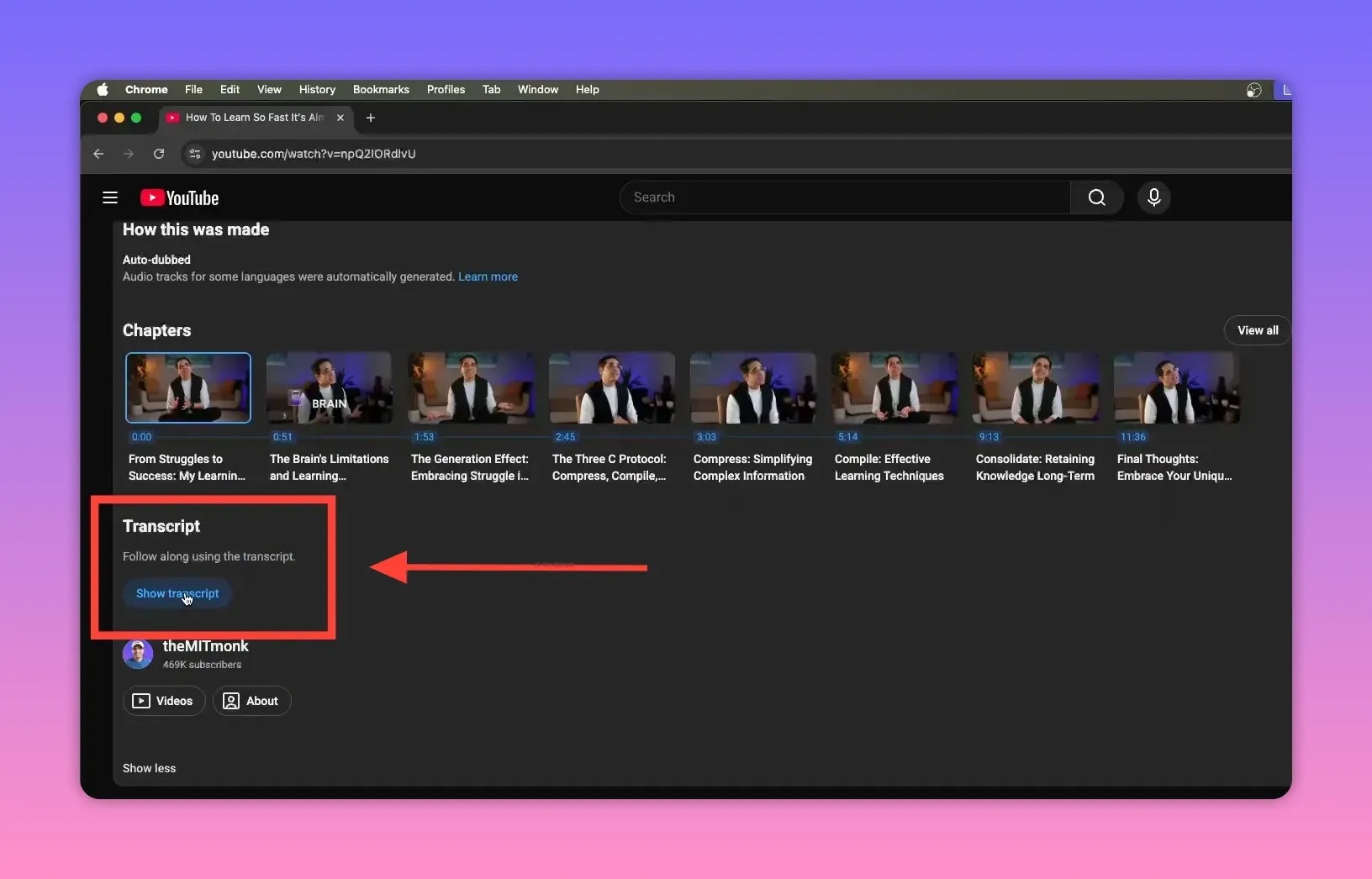
Open the description and click the blue “Show transcript” button to view the captions. - Toggle timestamps if you don’t need them. There’s a small option to turn timestamps on or off. Disable them to get clean, continuous text that’s easier to copy.
Click “Toggle timestamps” in the transcript pane to hide timestamps for a clean copy. - Copy and paste. Highlight the text inside the transcript pane, copy it, and paste it into your document or editor like you would any other text.
Why this method works
YouTube stores caption data alongside videos when captions are uploaded or when automatic captions are generated. The built-in transcript viewer simply exposes that existing text in a readable format. Because it’s native to the site, you don’t need third-party apps or browser extensions.
Useful tips
- Automatic captions vs. uploaded captions: If captions were auto-generated, expect occasional errors or rough phrasing. Manually uploaded captions are usually more accurate.
- Multiple languages: When available, choose a different language from the transcript dropdown to get translated text or alternate caption files.
- Large transcripts: For long videos, copy in chunks to avoid any browser selection hiccups.
- Editing before use: Clean up punctuation and filler words for readability if you plan to republish or repurpose the text.
Troubleshooting
If you don’t see a transcript option:
- Confirm the video has captions enabled. Not all uploads include captions or allow automatic captions.
- Some channels disable the transcript feature or restrict copying. In those cases, contact the uploader or look for captions provided in the video player itself.
- If the transcript pane doesn’t load, try refreshing the page or using a different browser.
Final takeaway
Getting the text from a YouTube video is faster than most people expect. With a few clicks you can access caption data, switch languages, toggle timestamps, and copy clean text—all without installing anything. Perfect for research, note taking, content repurposing, or creating study materials.
Rather watch instead?
Check out our demo video here...


